
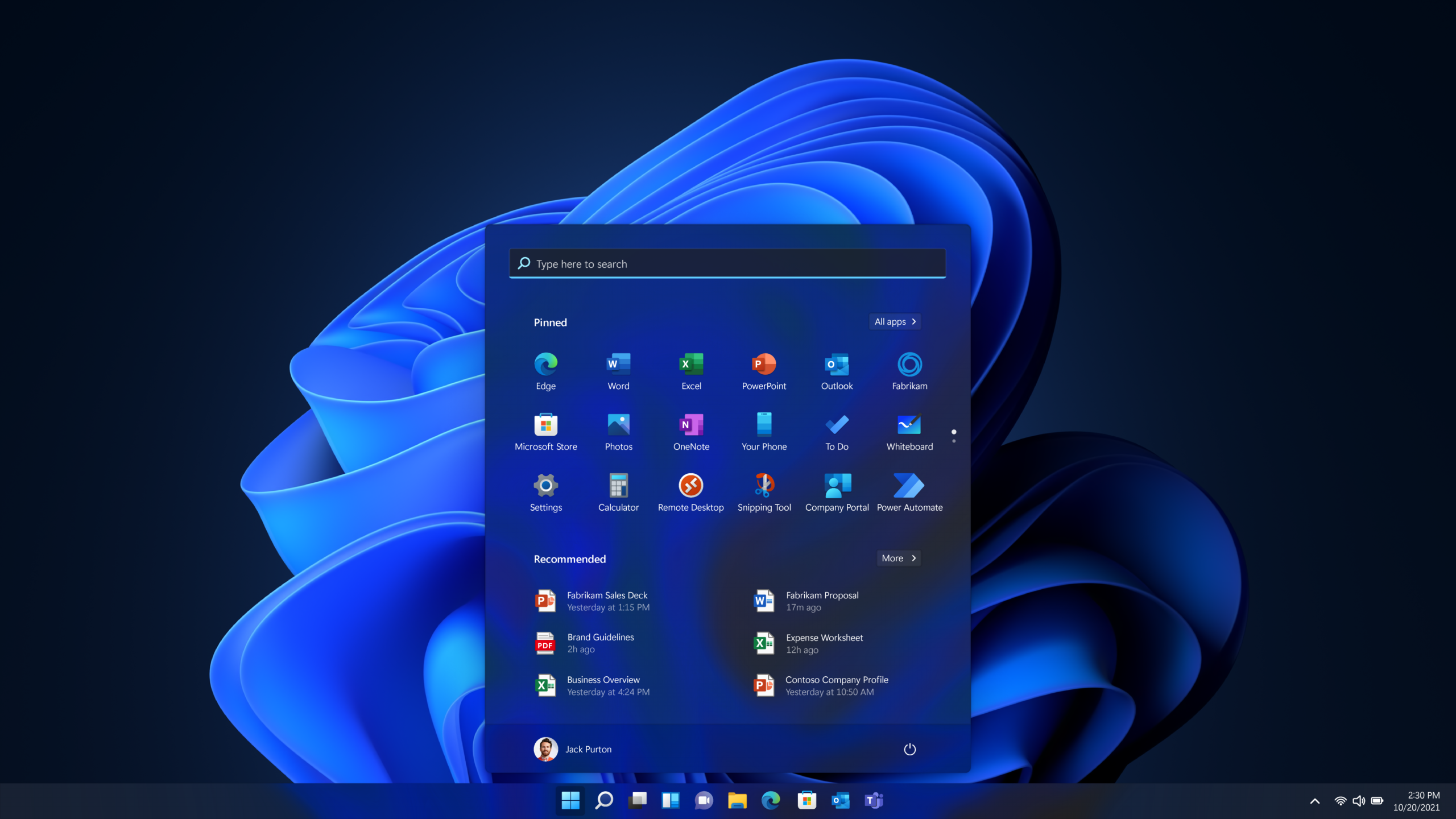
Windows 11 has matured significantly, and in 2026 it offers a smoother and more polished experience than ever before. Still, many users don’t take full advantage of the tools and settings that can improve performance and make everyday tasks easier. Small adjustments can reduce clutter, speed up workflows, and help your system run more efficiently.
This guide shares practical Windows 11 tips and tricks that focus on real-world usability rather than technical complexity.
Why Windows 11 Feels Slow for Some Users
Performance issues are often caused by unnecessary background processes, startup apps, and default settings that don’t match how people actually use their computers. Over time, these small inefficiencies add up.
By customizing a few key areas, you can make Windows 11 feel more responsive without upgrading hardware.
Clean Up Startup Programs
Many apps automatically launch when Windows starts.
Why This Matters
Too many startup programs slow down boot time and consume system resources. Disabling unnecessary startup apps helps your PC start faster and run smoother.
Review your startup list and keep only essential applications enabled.
Use Virtual Desktops to Stay Organized
Virtual desktops help separate different tasks.
How They Improve Productivity
You can create separate desktops for work, personal browsing, or creative tasks. This keeps your workspace clean and reduces distractions.
Switching between desktops is quick and intuitive in Windows 11.
Adjust Visual Effects for Better Performance
Visual effects look nice but require processing power.
What to Change
Reducing animation effects and transparency can make older or mid-range systems feel noticeably faster. These changes don’t affect functionality but improve responsiveness.
Performance-focused visuals are especially useful on laptops.
Take Advantage of Snap Layouts
Snap Layouts help you arrange windows efficiently.
Why Snap Layouts Are Useful
They allow you to organize multiple windows side by side without manual resizing. This improves multitasking and reduces time spent adjusting layouts.
For productivity-focused users, this feature is a major time-saver.
Enable Focus Sessions
Distractions can hurt productivity.
How Focus Sessions Help
Focus Sessions reduce notifications and help you work in dedicated time blocks. They encourage better concentration while still allowing essential alerts.
This feature is ideal for work, study, or creative projects.
Manage Storage More Efficiently
Low storage can affect system performance.
Use Built-In Storage Tools
Windows 11 includes tools that automatically remove temporary files and unused data. Regular cleanup keeps your system running smoothly and frees up space.
Maintaining storage health prevents slowdowns over time.
Keep Your System Updated
Updates improve more than just security.
Why Updates Matter
Windows updates often include performance improvements and bug fixes. Delaying updates may cause your system to run less efficiently.
Keeping your system current ensures optimal stability.
Customize Power and Performance Settings
Power settings influence system behavior.
Balanced Performance Matters
Choosing the right power mode allows your PC to balance speed and energy usage. Performance modes help during demanding tasks, while efficiency modes extend battery life.
Switching modes based on your needs improves overall experience.
Keyboard Shortcuts That Save Time
Small shortcuts add up.
Useful Shortcuts to Learn
Keyboard shortcuts help you navigate Windows faster and reduce repetitive actions. Over time, they significantly improve productivity.
Learning a few shortcuts can save hours each week.
When to Consider a System Reset
Sometimes performance issues persist.
Why a Reset Helps
A system reset removes accumulated clutter and restores default settings. While it requires backing up files, it can dramatically improve performance.
This should be considered only after other optimizations.
Final Thoughts
Windows 11 in 2026 is powerful, but only if configured properly. By managing startup apps, organizing workspaces, and adjusting performance settings, you can create a smoother and more productive environment.
Small changes make a big difference when applied consistently.